How to Shift Lock on Roblox Mobile

Roblox is one of the most popular games in the world, but many mobile players still struggle with one simple feature — Shift Lock.
If you’ve ever watched PC players move smoothly and control their character better, they’re probably using Shift Lock. The good news? You can use a similar setup on mobile too.
In this guide, I’ll show you exactly how to enable shift lock on Roblox mobile step-by-step.
What Is Shift Lock in Roblox?
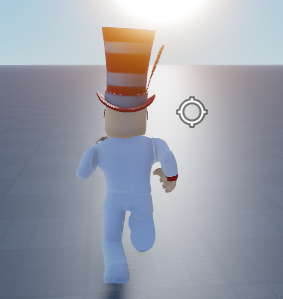
Shift Lock locks your camera behind your character, making movement and aiming much easier.
Players use it for:
- Combat games
- Obbies
- First-person aiming
- Better character control
On PC, it’s activated by pressing Shift, but mobile works a little differently.
Step 1: Open Roblox Settings

First, launch Roblox on your phone and join any game.
Once you’re inside the game:
- Tap the Roblox icon (☰) in the top corner.
- Open Settings.
Step 2: Enable Shift Lock Switch

Inside the settings menu, look for the option called:
Shift Lock Switch
Turn this ON.
This allows games that support shift lock to enable the feature.
Step 3: Join a Game That Supports Shift Lock

Not every game allows shift lock.
Many popular Roblox games support it, especially:
- FPS games
- Obbies
- Combat games
If shift lock is supported, the camera will lock behind your character when activated.
Why Shift Lock Might Not Work on Mobile
If it isn’t working, here are the most common reasons:
1. The game disabled it
Some developers turn it off.
2. The setting is off
Check that Shift Lock Switch is enabled.
3. Mobile control limitations
Mobile doesn’t have a physical Shift key, so some games handle it differently.